Azure AI Foundry is a unified platform for developing, customizing, and managing AI applications and agents. It provides tools and infrastructure for the entire AI development lifecycle, from concept to deployment, and includes access to a wide catalog of models from partners like OpenAI, Hugging Face, and Meta. Features include secure data integration, model customization, and enterprise-grade governance with features like tracing, monitoring, and evaluations.
In this blog post we are going to setup and access Azure AI Foundry, create a new project, deploy a model, and look at image and chat playgrounds. Let’s get started!
Prerequisites
Creating your Azure AI Foundry resource
- Login into the Azure Portal.
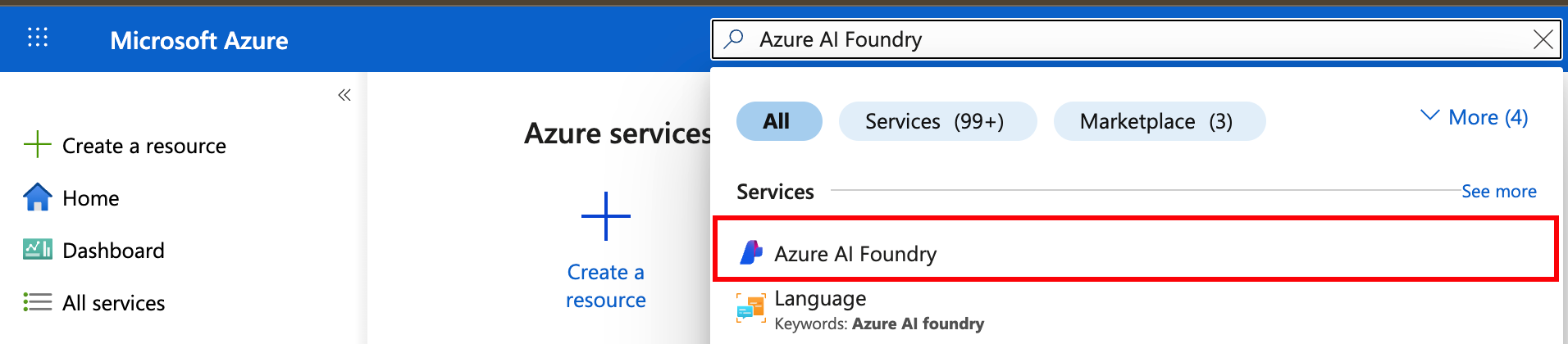
- Search for and select Azure AI Foundry.
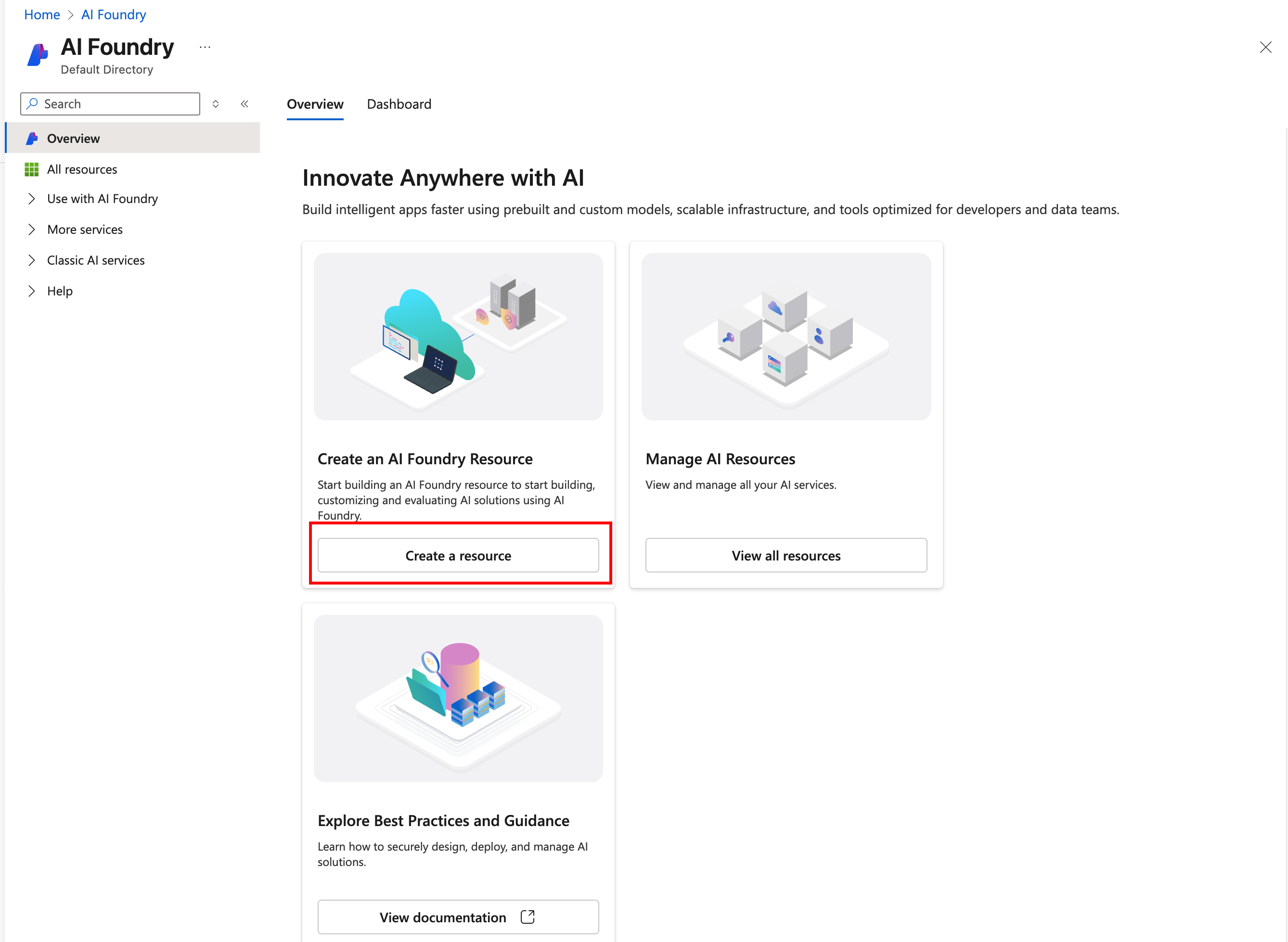
- Click Create a resource.
- Fill out the following fields on the Basics tab:
Instance Details
– Select a subscription.
– Create a new, or use an existing resource group.
– Enter the name of your Azure AI Foundry resource.
– Select a Region.
Your first Project
– Enter the Default project name.
– Click the Next button until the Review + Submit tab.
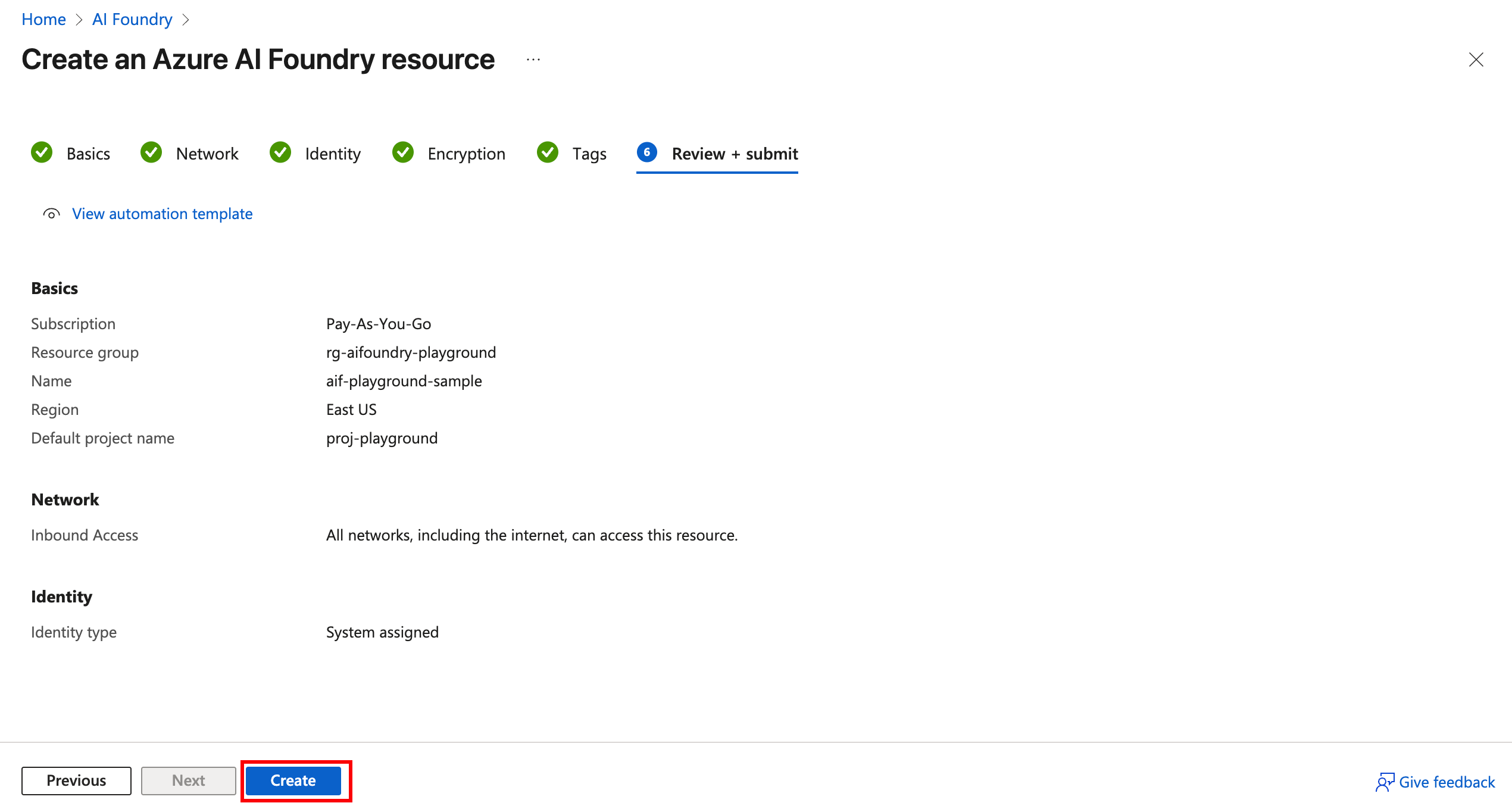
For this example, we will keep defaults for Network, Identity, Encryption, and Tags screens.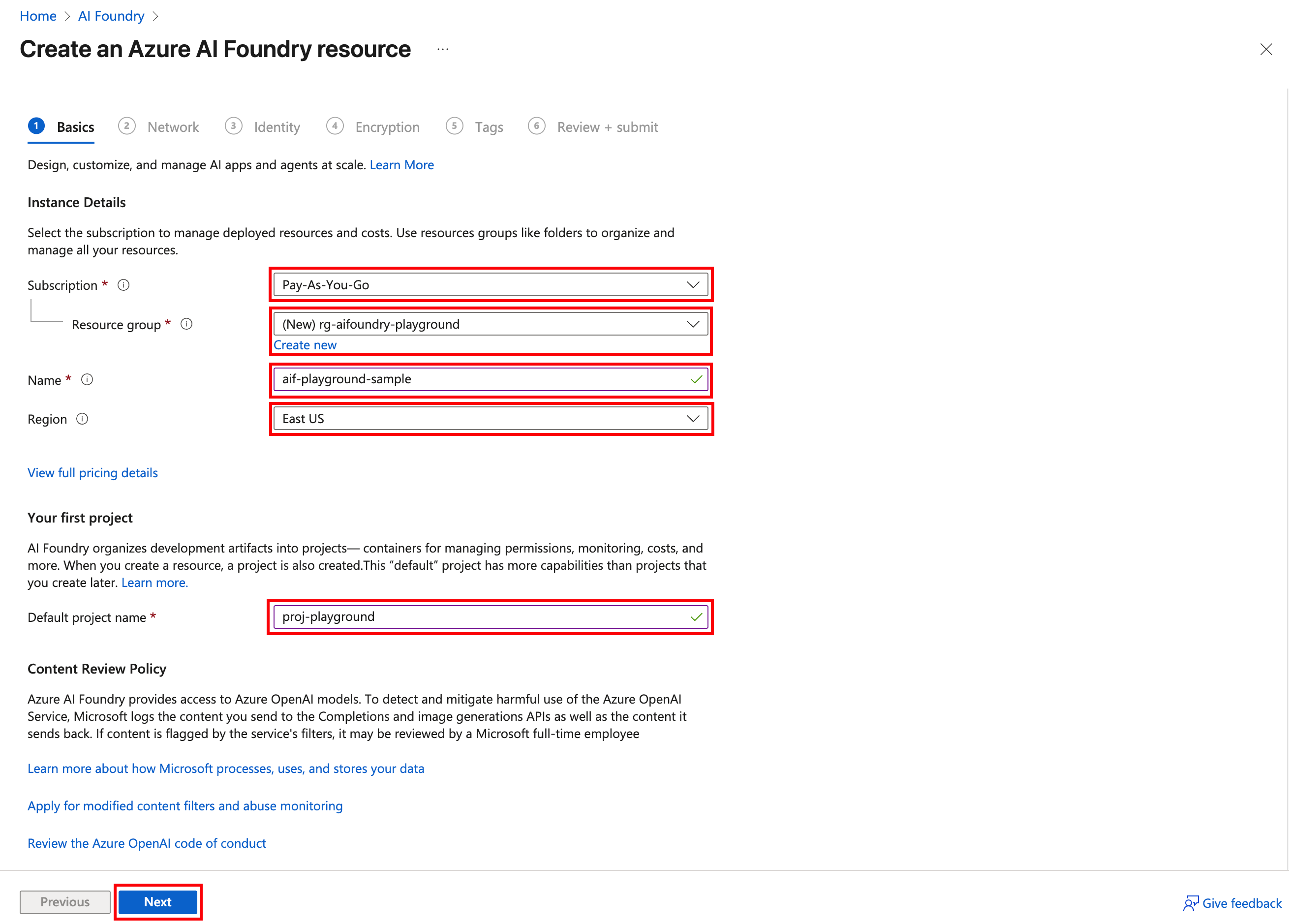
- Click Create.
- When deployment is complete, click Go to Azure AI Foundry portal button.

In order to use Azure AI Foundry Playgrounds, we’ll need to deploy a model. Below we’ll look at two different methods to deploy models.
Deploy a model from Playgrounds
- In Azure AI Foundry click Playgrounds.
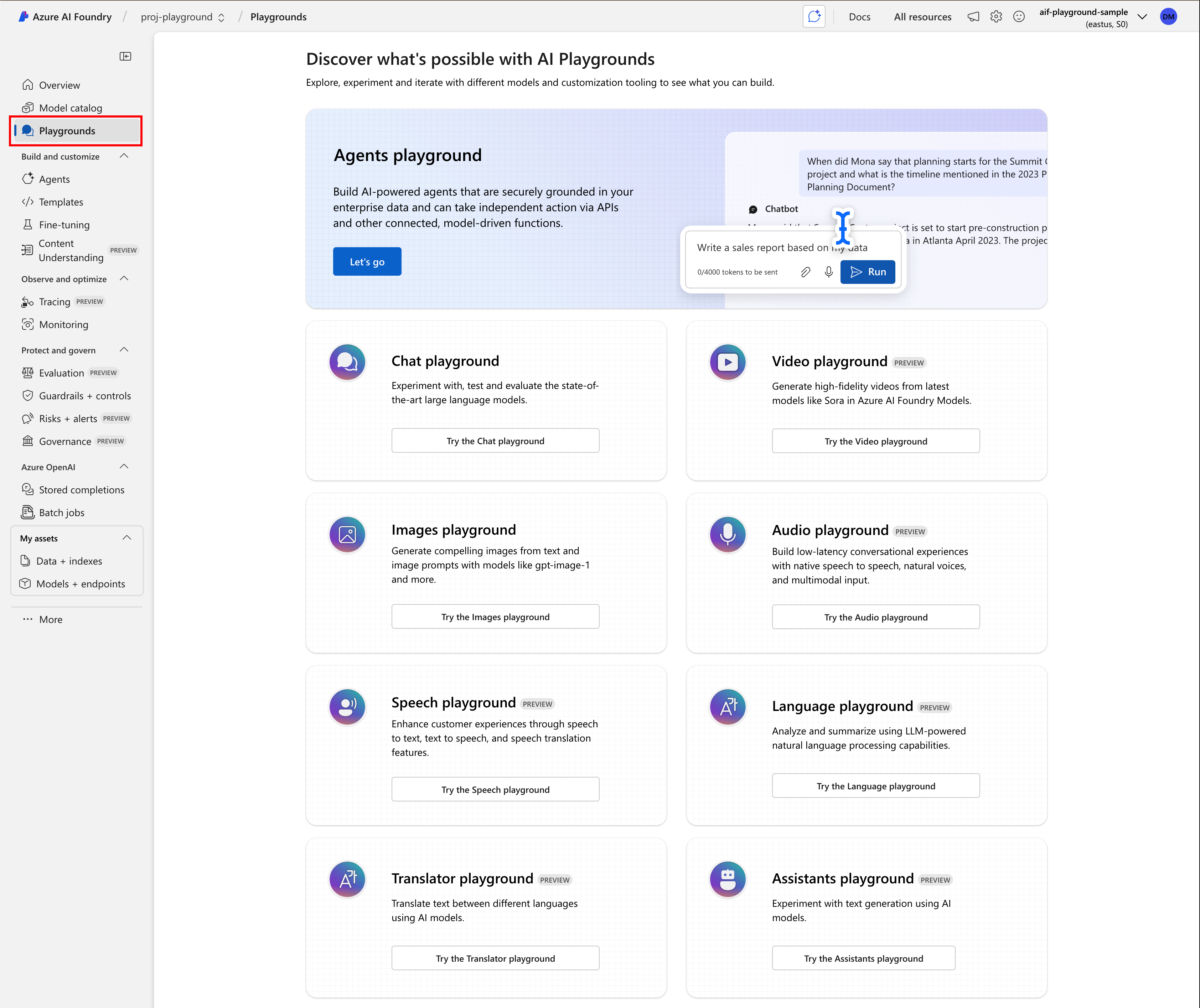
- Select the AI Playground you want to experiment with. For this example we will use Images Playground. Click Try the images playground button.
- Click the + Create a deployment button.

- Select the image generation model you want to use. For this example we will use the dall-e-3 model and click Confirm.

- Click the Deploy button.

Deploy a model from the Model Catalog
- In Azure AI Foundry, click Model catalog.
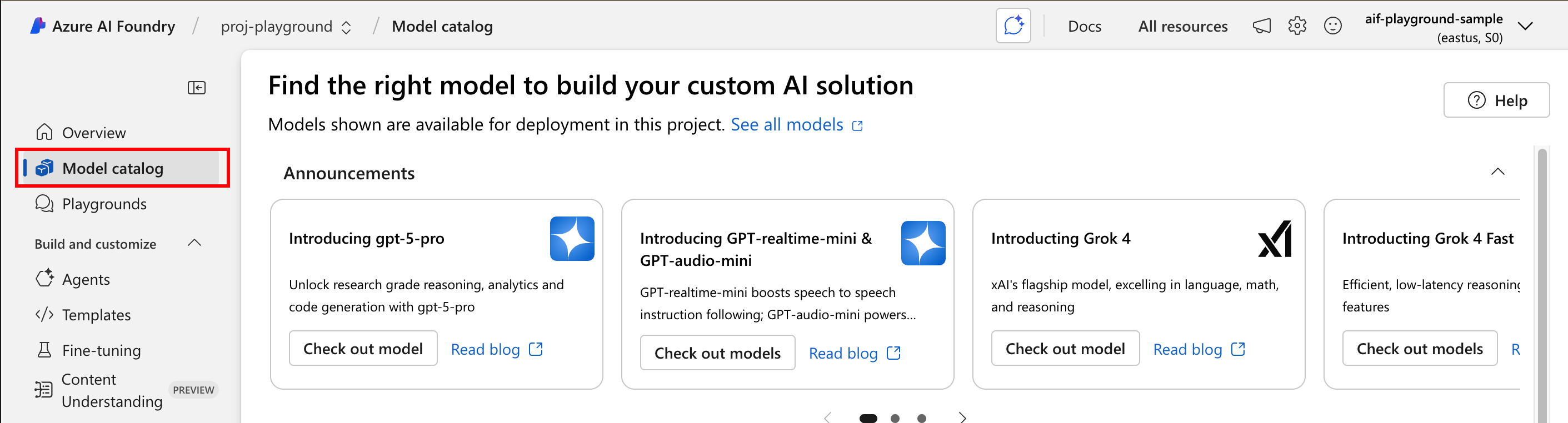
- For this example, we are going the use the gpt-5-chat model. Scroll down to the Models section and click gpt-5-chat.

- Click Use this model button.

- Click Create resource and deploy button.
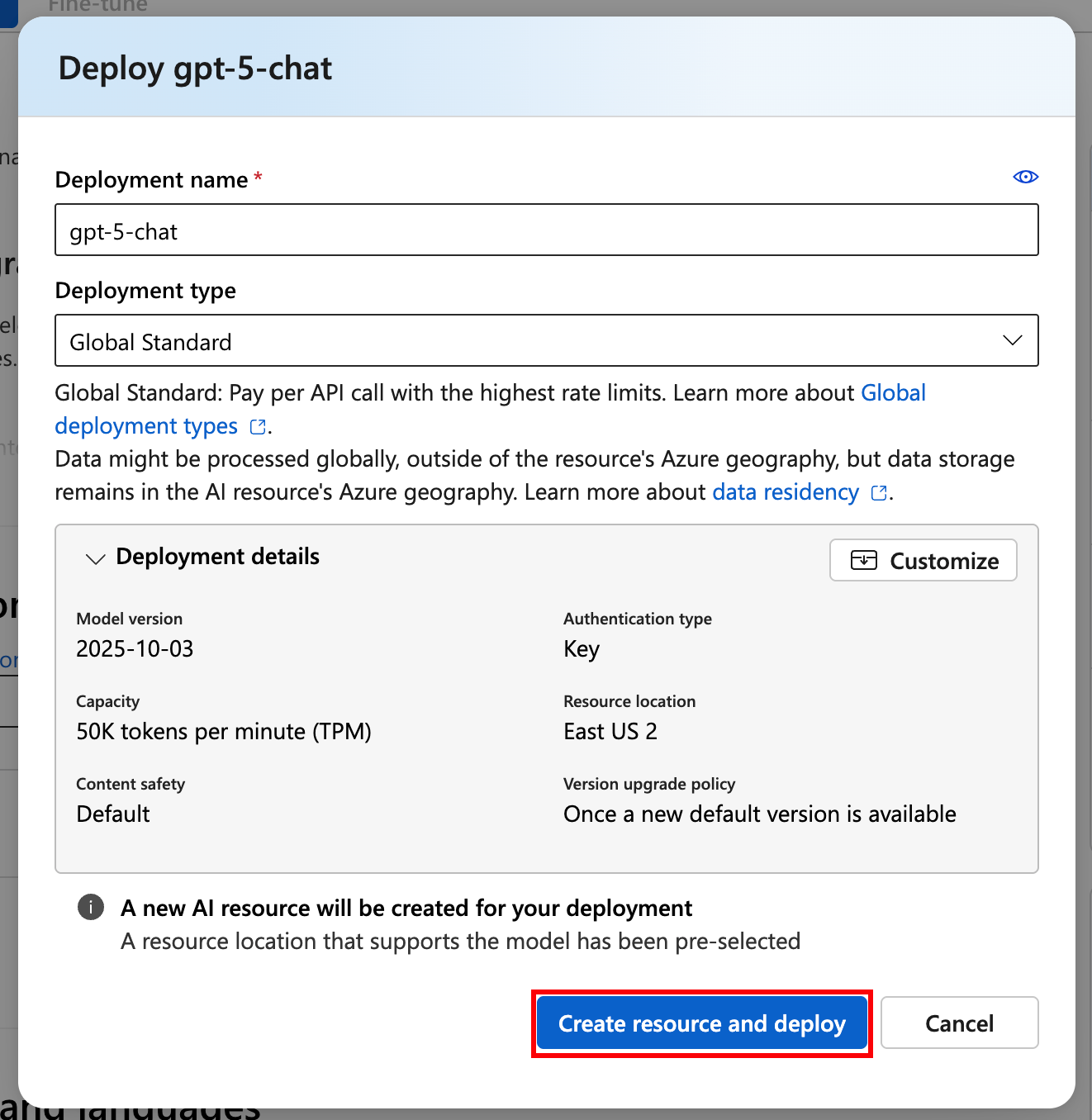
- After the model has deployed, click Playgrounds to navigate to the chat playground.

Using Azure AI Foundry Playgrounds
- Chat Playgrounds allows you to experiment with the selected model. In this example you can test sample prompts, provide the model instructions and context, add safety messages, examples, variables, and set parameters. The Max Tokens parameter controls the maximum length of the models responses. Top P and Temperature parameters control the creativeness and randomness of the model’s responses.

If you want to test a different model in Chat Playgrounds, Click the + Create a new deployment button. - Image Playgrounds allows you to experiment with the selected image model. In this example you can test sample prompts, adjust resolution, style and image quality.
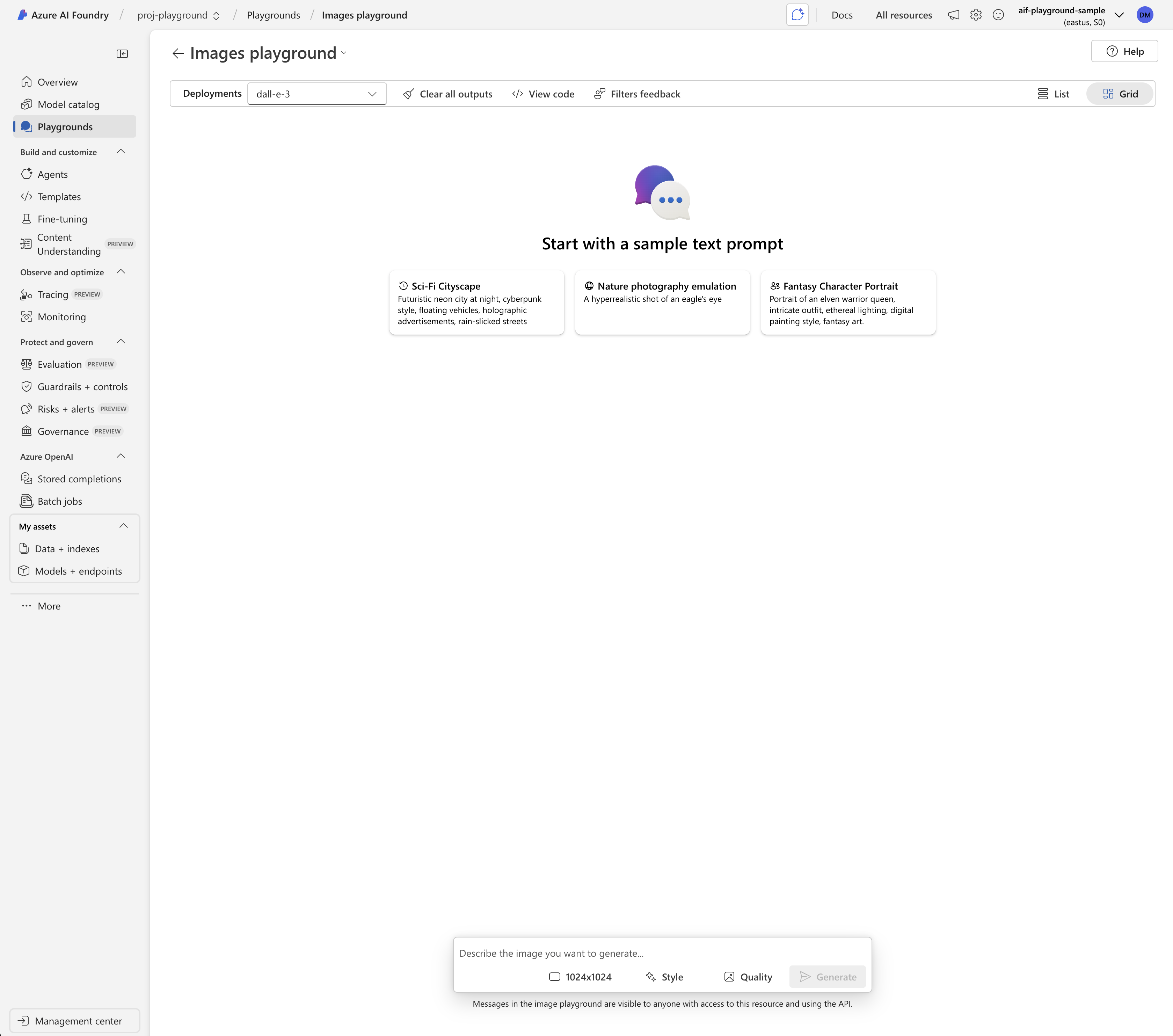
Summary
Azure AI Foundry Playgrounds allows users to interact with various models, set parameters to control output, and add custom prompts and context. In this blog post we setup the resources for chat and image playgrounds as well as reviewed different available parameters.
Thank you for reading!
 Dave McCollough